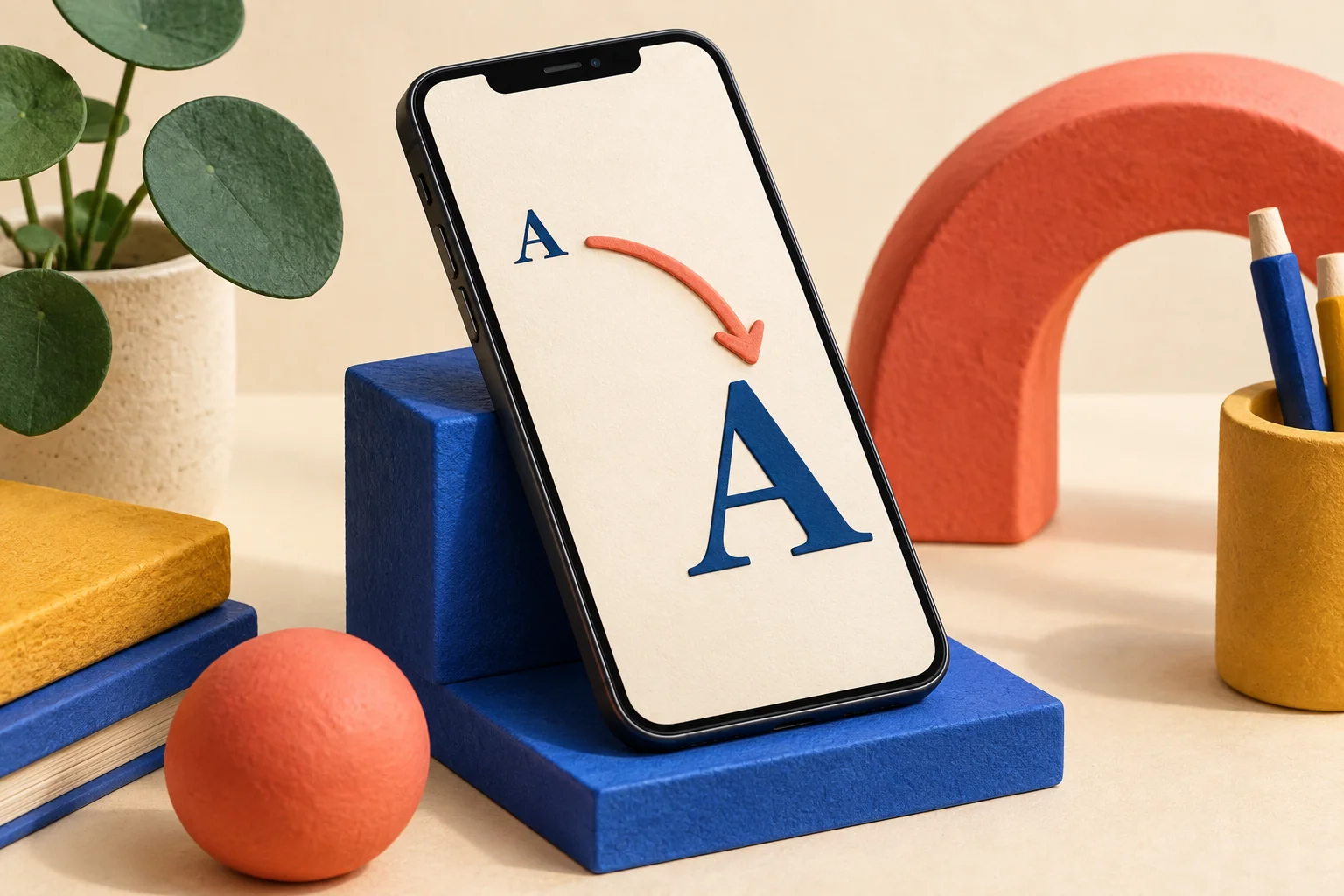
You do not have to accept tiny text just because it is the default. Start with a small increase, test the places you read most, and adjust again if needed. The right setting is the one that helps you read comfortably while keeping important buttons and controls easy to reach.
Open Settings → Accessibility → Display & Text Size → Larger Text. Adjust the slider, and enable Larger Accessibility Sizes if you need more range.
Go straight to the stepsBefore you begin
Text-size support varies by app. Increasing text size and magnifying the entire display are different settings.
What you’ll need
- An iPhone
- A few familiar apps to check
Let’s do this
Step by step
- 01
Open text accessibility settings
In Settings, select Accessibility, then Display & Text Size. Choose Larger Text.
- 02
Increase the size gradually
Move the slider a little to the right. Turn on Larger Accessibility Sizes if the ordinary range is not enough.
- 03
Try bold text if useful
Return to Display & Text Size and consider Bold Text. Change one setting at a time so you can judge which adjustment helps.
- 04
Test real reading tasks
Open a message, an email, and a note. Read a paragraph, open a menu, and check that you can still reach the main buttons.
- 05
Fine-tune for your routine
If a screen becomes awkward, reduce the size slightly and test again. Keep the setting that works across your everyday tasks, rather than judging only the sample in Settings.
Use a practical three-screen test
Choose one screen with long text, one with a list, and one with a form. A setting that looks excellent in a single sentence can feel different in a crowded appointment form. Try the same examples after each adjustment so the comparison is fair.
If only one app is difficult to read, check its own display settings. Do not keep making the whole phone larger just to compensate for a single webpage or poorly laid-out screen. The specific app may offer another useful control.
Make the change easy to reverse
Before you begin, note roughly where the slider sits. You do not need a precise measurement; a quick screenshot or note is enough to help you return to the old setup. Once the new size feels right, try it for an ordinary day before making several more display changes.
A quick final check
- Paragraphs are comfortable to read.
- Important buttons remain accessible.
- Several everyday apps were checked.
Common questions & sticking points
Why didn’t every app’s text change?
Apps need to support the relevant text-sizing features. Check the app’s own options if it does not respond.
Can I make text bolder without making it larger?
Yes. Bold Text is a separate setting under Display & Text Size.
Sources & further reading Optional
References used to check this guide. Follow your product’s own safety instructions where its design differs.
Last source check: September 21, 2026