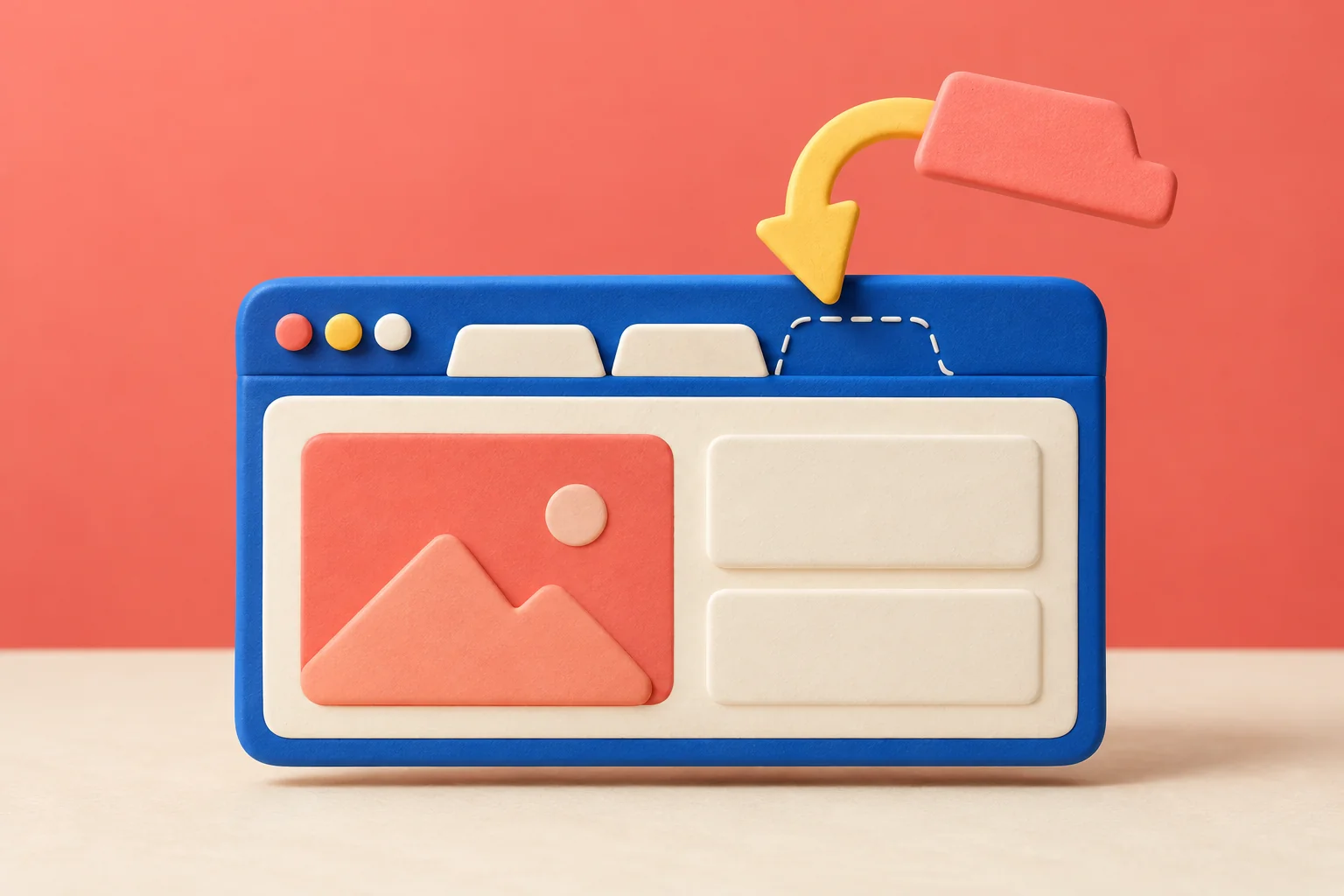
Closing the wrong tab is frustrating, especially when you cannot remember the exact page title. Start with the reopen shortcut while the closure is still recent. If that does not produce the page, use browsing history and a distinctive word from the site rather than guessing the entire address.
Press Ctrl + Shift + T on Windows or Linux, or Command + Shift + T on Mac. Repeat to reopen earlier closed tabs.
Go straight to the stepsBefore you begin
Reopening a page does not guarantee recovery of unsaved form entries. Private browsing and deleted history also limit what can be recovered.
What you’ll need
- Desktop Google Chrome
- The browser profile you were using
Let’s do this
Step by step
- 01
Focus Chrome
Click the Chrome window you were using. If you have several profiles, use the one where you closed the page.
- 02
Use the reopen shortcut
Press Ctrl + Shift + T on Windows or Linux, or Command + Shift + T on Mac. Repeat one press at a time until the page you need appears.
- 03
Look farther back if needed
Open History—Ctrl + H on Windows or Command + Y on Mac. Look for the site or page title from your earlier visit.
- 04
Check the recovered page
Confirm that it is the right document, account, or article. If you were filling out a form, inspect the fields carefully before submitting.
- 05
Save important references
Bookmark a page you will need again, or save the finished document to an appropriate folder. A crowded tab strip is a fragile filing system.
Search by something distinctive
If you were comparing two washing machines, the model name may be more useful than searching history for “washer.” If you were reading a tutorial, try a memorable word from the heading. Search for the page itself rather than a vague description of what you were doing.
Work through recent closures slowly. Pressing the shortcut a dozen times can restore many unrelated pages and make the original problem harder to see. Once you find the right page, stop and verify it.
Keep a small working set
For a task that spans several days, make a bookmark folder named after the project and save only the references you need. Separate reference pages from documents you are actively editing. That way, closing a window does not also erase your plan for tomorrow.
A quick final check
- The correct page is restored.
- Any unsaved entries were checked.
- Important references have a durable home.
Common questions & sticking points
Can I restore a closed Incognito tab this way?
Do not rely on normal browsing history to recover private tabs after the private session ends.
Will the shortcut bring back everything I typed?
Not reliably. A reopened URL and recovered form data are different things; inspect the page before continuing.
Sources & further reading Optional
References used to check this guide. Follow your product’s own safety instructions where its design differs.
Last source check: September 21, 2026