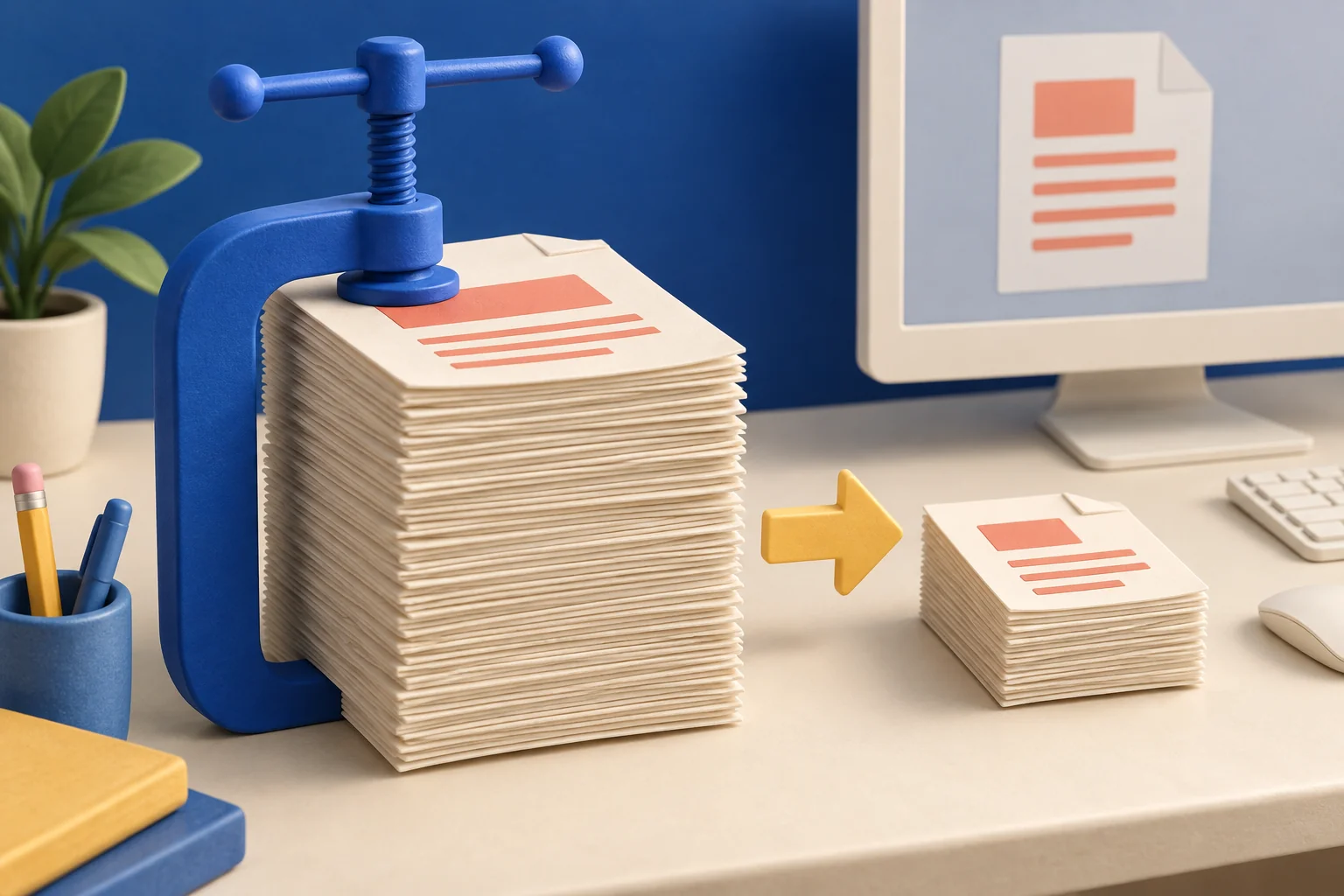
A smaller PDF is useful only if people can still read it. Preview has a built-in compression option, but scanned pages and images can lose detail. The best approach is to create a separate copy, compare it with the upload limit, and inspect the parts that are easiest to damage.
In Preview, choose File → Export and select Reduce File Size from the Quartz Filter menu. Save a separate copy and check its readability.
Go straight to the stepsBefore you begin
Do not overwrite the only copy of an important document. For signed or official documents, check the recipient’s file requirements before transforming them.
What you’ll need
- A Mac with Preview
- The original PDF
- The upload size limit, if any
Let’s do this
Step by step
- 01
Record the starting point
Find the PDF’s size in Finder and note the receiving site’s limit. Choose a name for the smaller version so it cannot be confused with the original.
- 02
Open and export
Open the document in Preview, then choose File → Export. Select Reduce File Size in the Quartz Filter menu.
- 03
Save a new version
Use a different filename or folder. If you are asked to replace the original, cancel and change the name instead.
- 04
Compare size and quality
Check the new file’s size, then open it. Inspect small print, tables, signatures, and diagrams—not just the first page. Keep the compressed copy only if it still does the job.
- 05
Try the upload
Upload the chosen copy. If the website rejects it, read whether the problem is size, format, protection, or something else before making another version.
A useful before-and-after check
Suppose your original is 12 MB and the upload limit is 10 MB. A readable 8 MB copy solves the problem; you do not need to chase the smallest possible number. By contrast, a 400 KB copy with blurry application details is not a successful result.
For a long document, choose a few demanding pages to inspect: the densest text, a photo, and a table. Then confirm that the page count is unchanged. Keep both copies until the recipient has accepted the file.
When compression is the wrong fix
If a form says it cannot accept password-protected PDFs, making the file smaller does not address that message. If a scan contains unnecessary blank pages, consider making a clean copy with only the required pages, but first check that every page the recipient expects is included.
A quick final check
- The original is preserved.
- The new copy is below the relevant limit.
- Small text and page count have been checked.
Common questions & sticking points
Will Preview always make the PDF smaller?
No. Apple notes that the result and image quality vary with the chosen options and the original file.
Why did the text get blurry?
Compression can reduce image quality, especially on scanned pages. Keep the original and use a less aggressive option or another accepted delivery method.
Sources & further reading Optional
References used to check this guide. Follow your product’s own safety instructions where its design differs.
Last source check: September 21, 2026